Setup Amazon AWS Account
To use Amazon you must sign up for an Amazon Web Services (AWS) Account.
For information on obtaining an AWS Account, go to the Amazon AWS Home Page (http://aws.amazon.com) and press the Signup button.
Setup Eucalyptus Account
Eucalyptus is an open source implementation of an Infrastructure as a Service (IaaS). It is a web services based implementation of a cloud computing infrastructure. Those familiar with Amazon's EC2 system will find most of these instructions familiar because Eucalyptus is compatiable with the Amazon AWS API.
Signup
If you are using the Eucalyptus Community Cloud select signup to apply for an account. Otherwise go to the Web page of the Eucalyptus cloud installation (The URL will be of the form https://your.cloud.server:8443/, where your.cloud.server is likely to be the front-end of the cluster.)
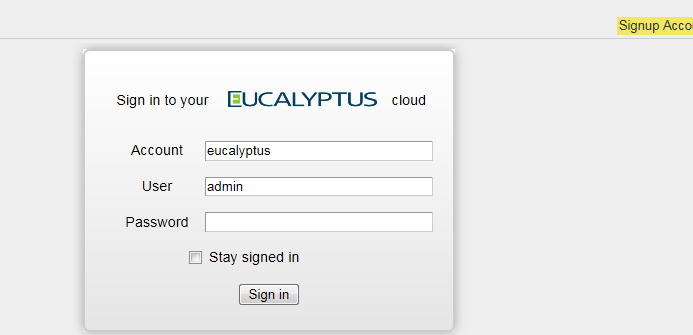
Click the "Apply" link and fill out the form presented to you. You may not be able to use the system until the (human) administrator receives the notification of your application and approves it. The more information you supply the easier it may be for the administrator to make the decision.
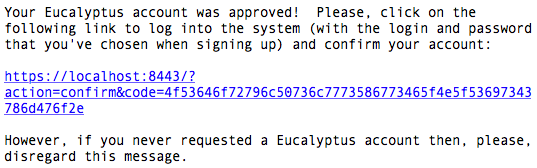
Load the confirmation URL that you receive in the approval email message from the cloud administrator. Log in to the system with the login and password that you chose when filling out the application form.
Obtain Credentials
Once you have logged in, you will see the 'Generate Certificate' button under the 'Credentials' tab. Generating a certificate for your account is necessary before you can use EC2Dream.
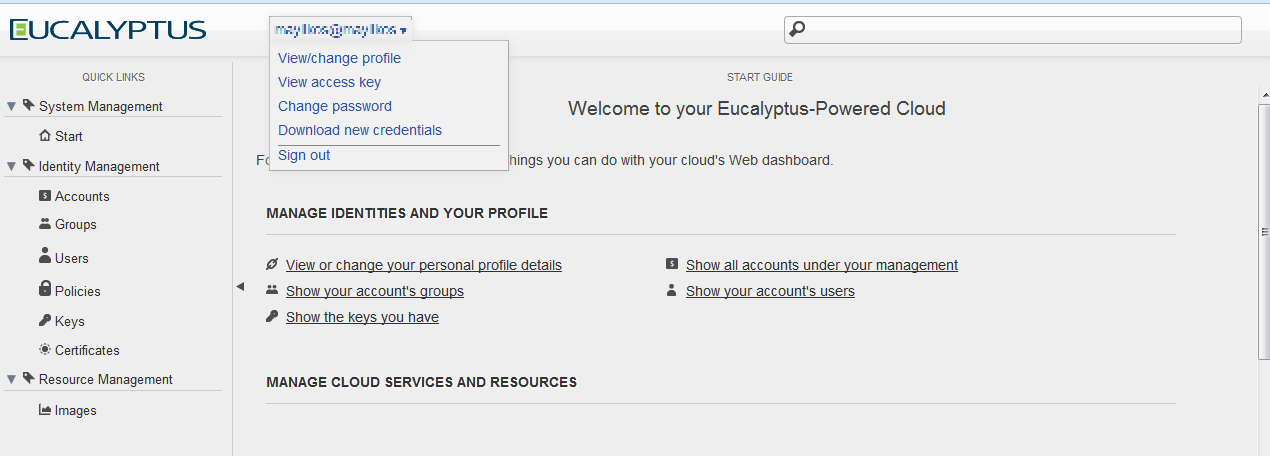
Click the button to generate the certificate and save it. You can keep these keys in a secure place on any host. The following command-line instructions apply to any Unix-flavored machine with bash (not necessarily the cluster where Eucalyptus was installed).
Unzip the keys using the following command and protect them from exposure. The zip-file contains two files with the .pem extension; these are your public and private keys.
mkdir ~/.euca
cd ~/.euca
unzip name-of-the-key-zip.zip
chmod 0700 ~/.euca
chmod 0600 ~/.euca/*
Setup OpenStack Account
If you are using the TryStack Cloud follow the signup instructions to apply for an account. At time of writing you need to join the facebook group to get your invite.
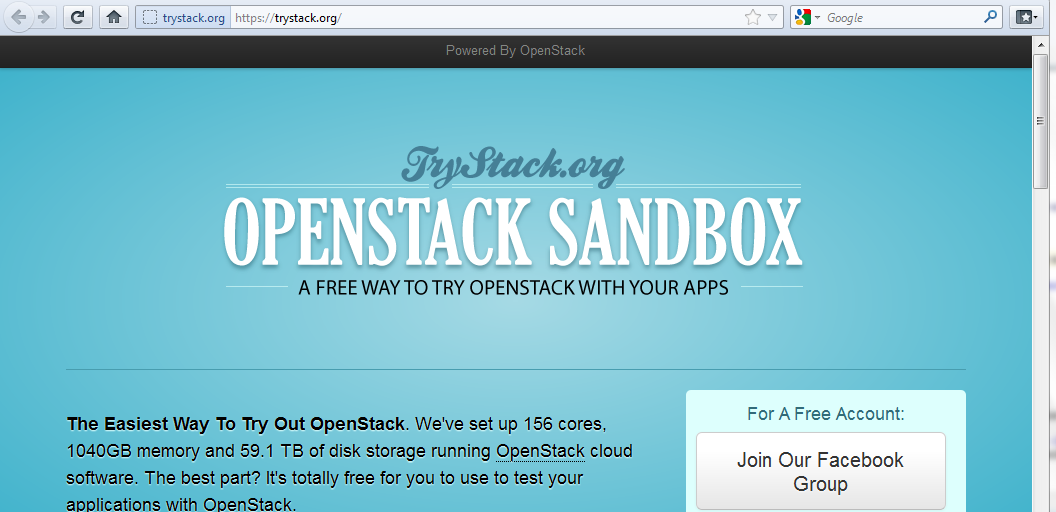
When you get the (Somebody) approved your request to join the group TryStack notification, go login to trystack (click login to dashboard and then login using facebook).
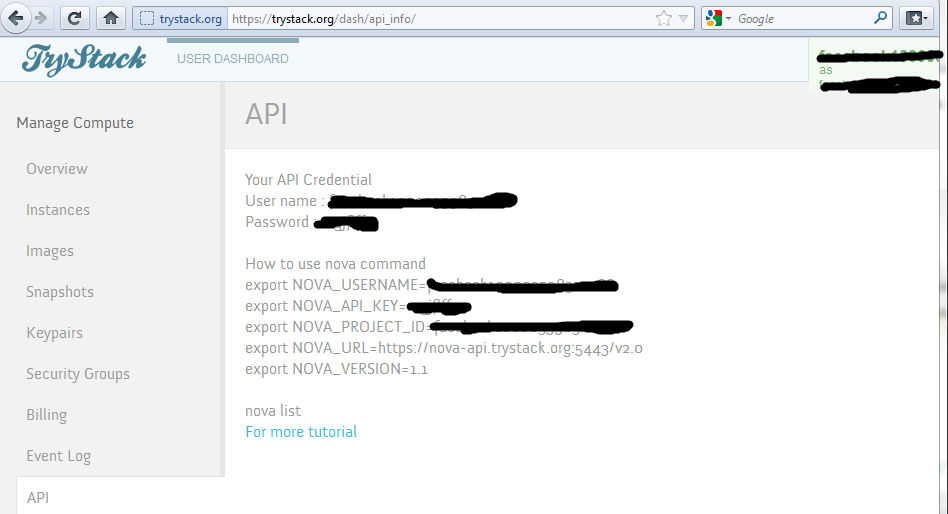
Click on the API Option and note the user, password and url which will be used to setup an environment.
Setup HP Cloud Account
If you are using the HP Cloud go to http://www.hpcloud.com/ and press the setup free account button and enter your details:
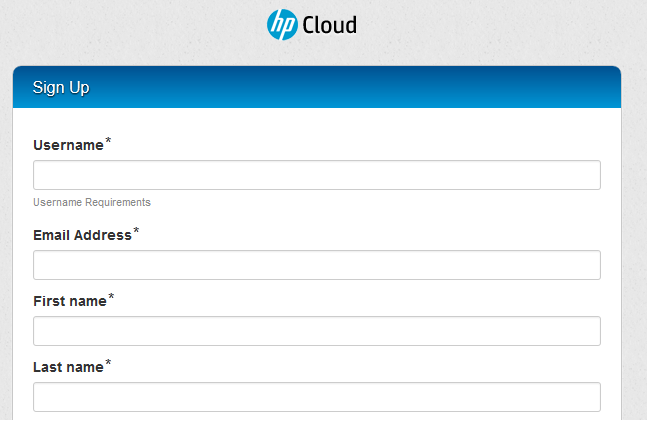
Get your login details from the email that will be sent to your address and go to the Console and login.
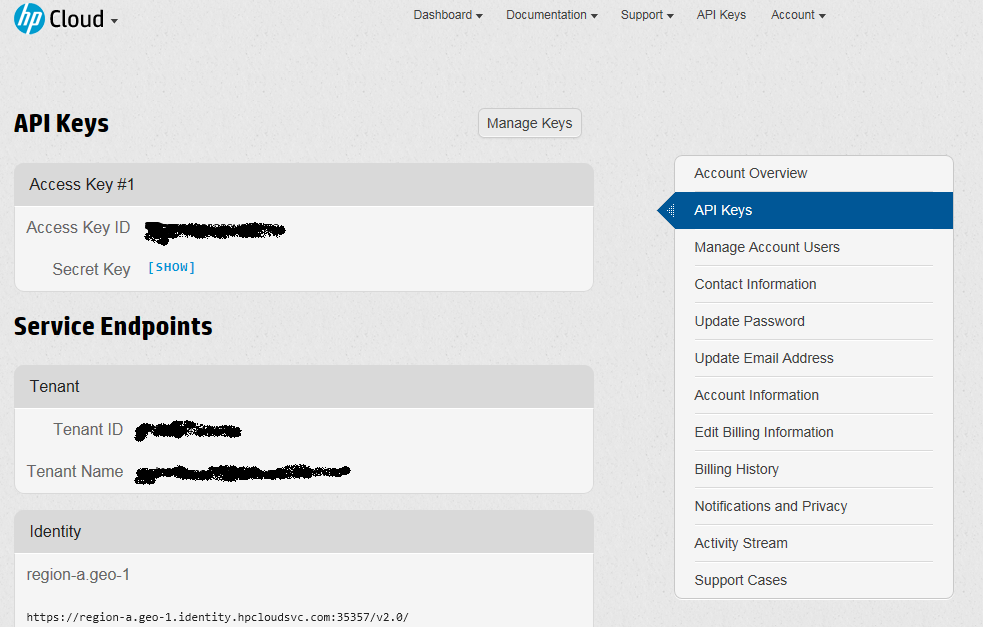
Click on API Keys and note the Access Key, Secret Key and Tenant Id which will be used to setup an environment.
Setup Rackspace Account
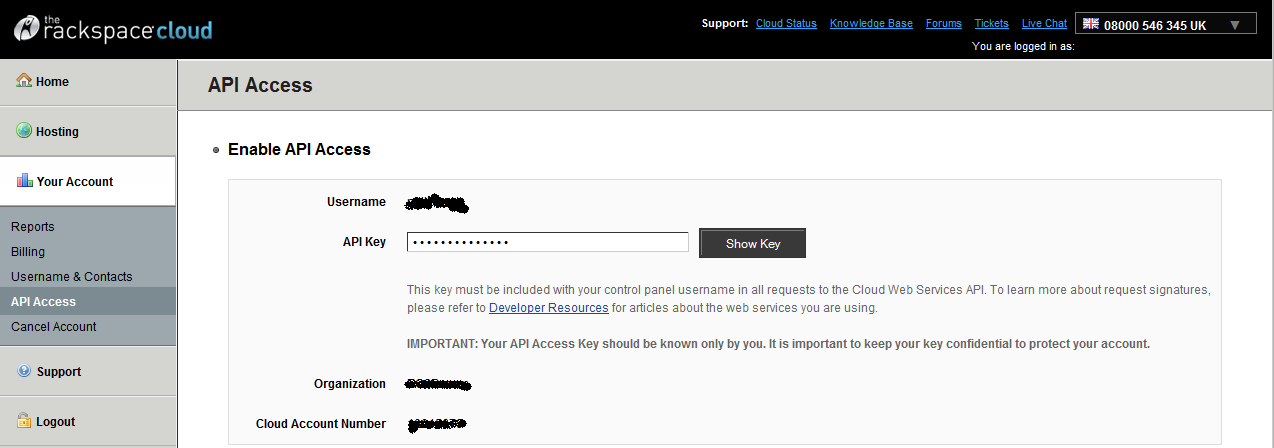
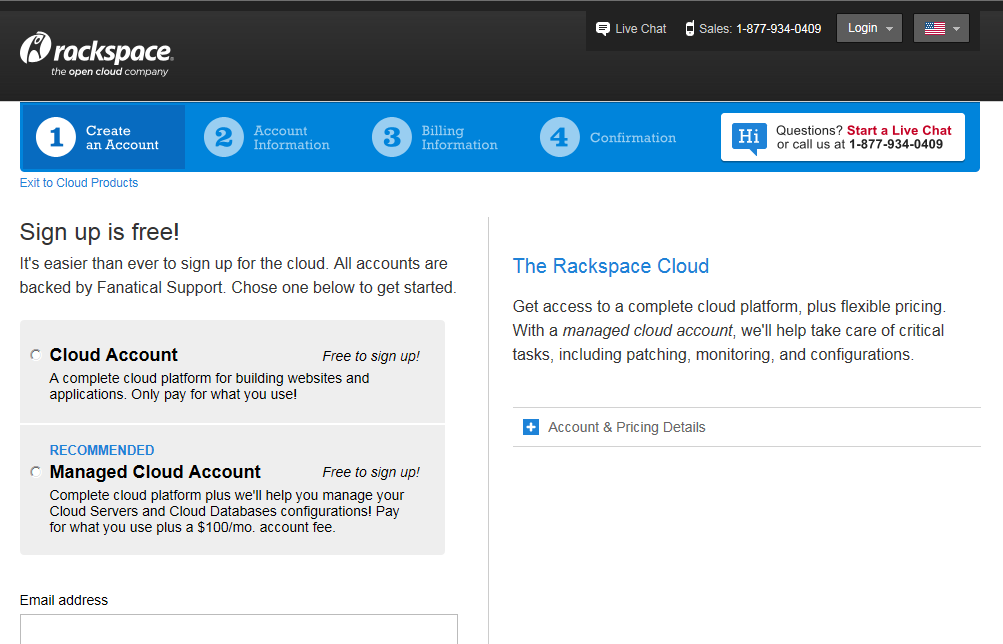
If you are using the Rackspace Cloud go to http://www.rackspace.com/cloud/ and press the signup button and enter your details to create a cloud account: (For Non-US customers switch to the Rackspace Website for your country)
Get your login details from the email that will be sent to your address and go to the http://www.rackspace.com and login to the Cloud Control Panel.

Select API Keys
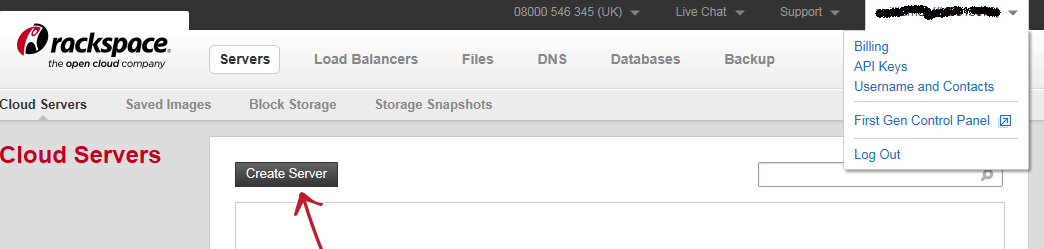
Note the Username, API Key and Account Number which will be used to setup an environment.